Audit Log
NodeZero's Audit Log provides an auditable record of user actions on each NodeZero account, compliant with NIST SP
Accessing the Audit Log
Organization Admins can view, filter, and download Audit Log events – including those on clients within a parent account – as follows:
- At the NodeZero Portal's top right, open your user profile menu, and select Settings.
- From the upper tabs, select Audit Log. This displays a version of the page shown below.
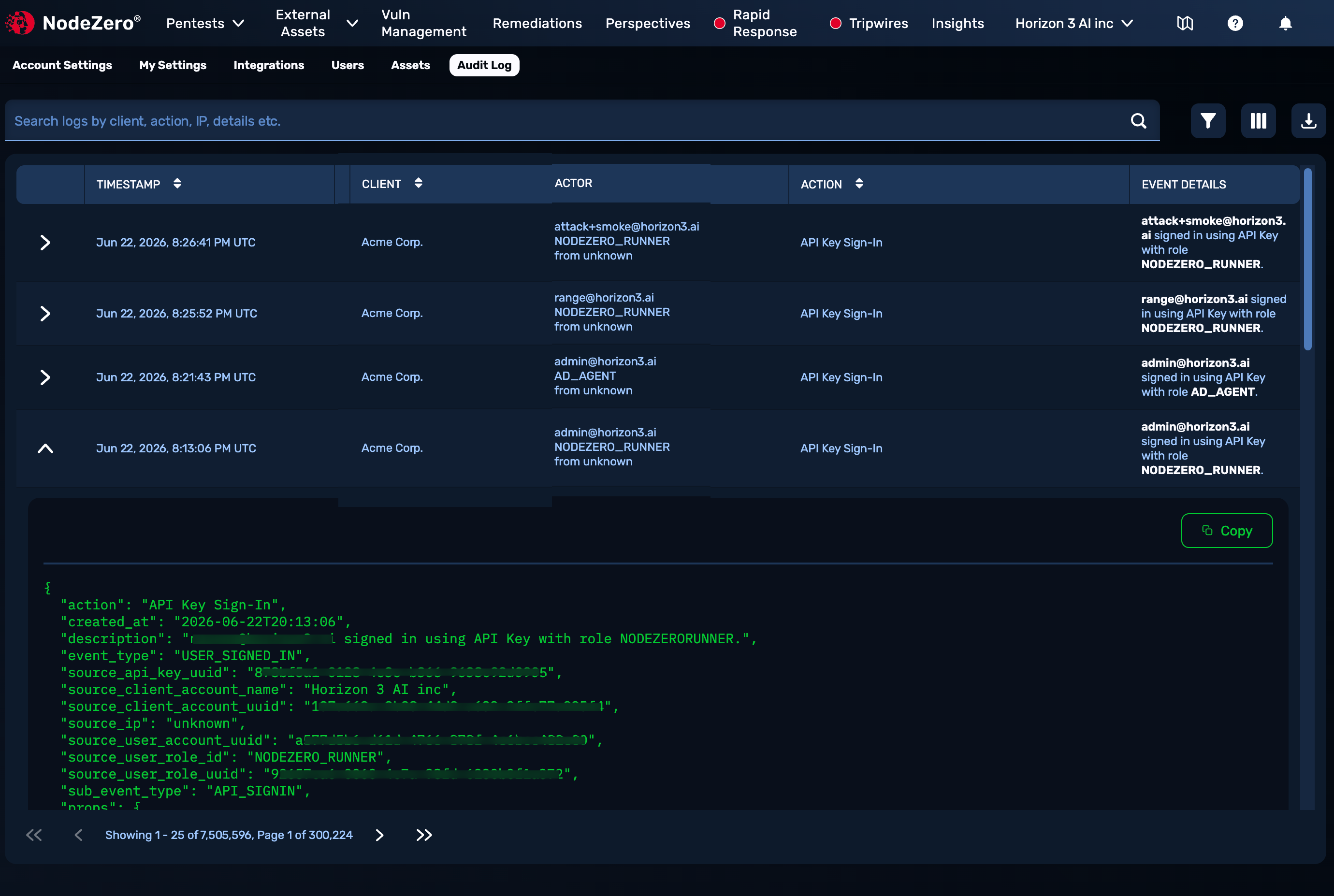
Audit Log, with one event expanded
Log Events
The Audit Log can display events in the following columns, whose visibility you can toggle on or off:
| Column | Details |
|---|---|
| Timestamp | When the event occurred. |
| Client | Displayed on parent accounts. |
| Actor | Individual or other entity (such as a shared team ID or a generic Horizon3.ai employee role) that performed the action; might display individual's role and IP address. |
| Action | Access/authentication, testing, and other significant actions on the account. (To reduce noise, some high-frequency read and query event types – such as viewing test operations, or Tripwire or Rapid Response alerts – are throttled to one entry per day.) |
| Event Details | A summary of the JSON blob available to display. |
| Access Reason | Can be toggled on to complement Horizon3.ai employee actions. |
Event Metadata
As shown in the screenshot above, you can open any event's accordion to display detailed metadata in JSON format. A Copy button is available with each JSON blob.
Filtering the Log
You can filter the Action Log's contents in several dimensions.
The search box above the table enables flexible filtering by client (where applicable), actor, action (event type), IP address, event details, and other text strings.
The Filter control, shown below, enables searching by predefined or custom date ranges.
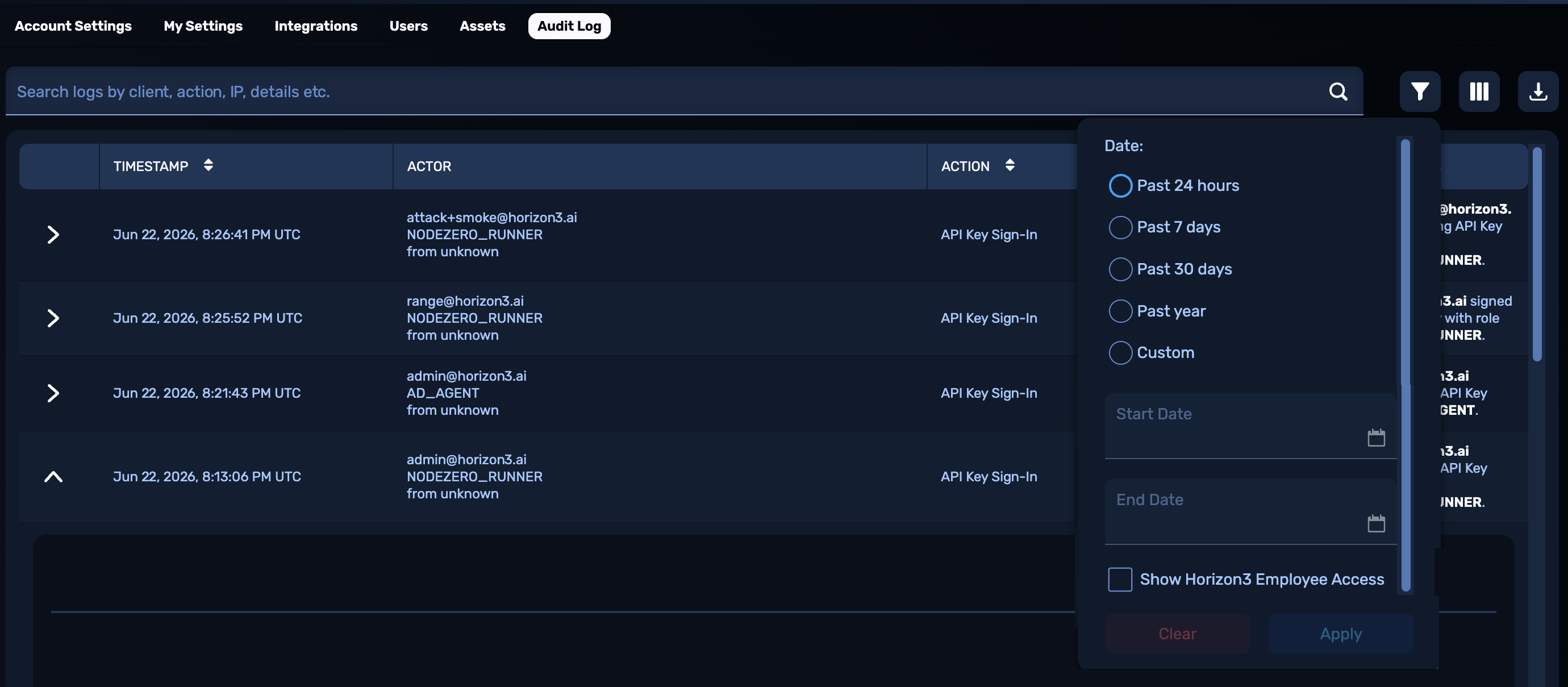
Audit Log filtering options
By default, the Filter drop-down's Show H3 Employee Access check box is not selected, so you will see only actions within your own organization. Selecting this check box adds Horizon3.ai employees' actions on your behalf, redacted into a pair of roles:
-
h3_adminis a small superuser group with elevated platform access. -
h3_org_admincovers all other H3 employees.
Before any h3_org_admin enters a customer environment, they initiate a check-in that records who, when, and why (see Access Reason codes in the next section).
Controlling Log Columns
The Columns drop-down, shown below, enables you to toggle on or off each of the columns available in your organization.
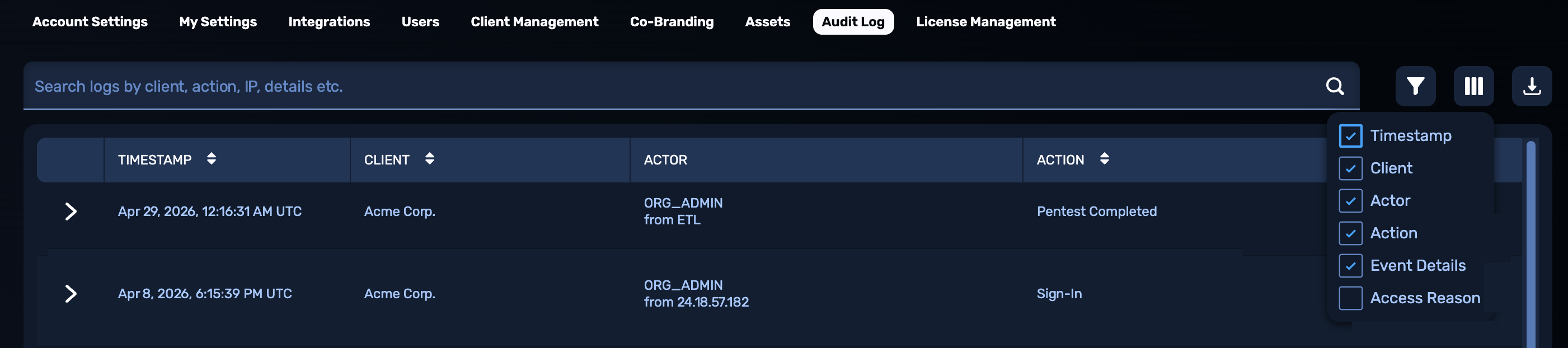
Audit Log column toggles
Access Reason codes are hidden by default. If you enable the Show H3 Employee Access option. you can display this column to add context to rows that show Horizon3.ai employee actions on your organization's behalf. (These codes will not be displayed for your own organization's users.) The codes are:
- Support
- Quality_Assurance
- Sales
- RND (Research and Development)
- Customer_Success
- Rapid_Response
Exporting the Log
Click the Export to CSV button to download your Audit Log to a comma-separated-values file. Your file's contents will be scoped to the filtering options you selected before exporting.
Frequently Asked Questions
What Events Are Logged?
The NodeZero Audit Log captures security-relevant events in accordance with FedRAMP High and NIST SP 800-53 requirements:
- Authentication and access – User sign-ins, sign-outs, and authentication attempts.
- Security testing activities – Pentest operations and security scans.
- Administrative actions – Configuration changes, user management, and permission updates.
- Security monitoring – Alert triggers and system events.
Each log entry records who performed the action (individual or other entity/role), what action was taken, when it occurred, and which account was affected.
How Long Does NodeZero Retain Logs?
An Audit Log is retained indefinitely in your NodeZero environment. You can access your full audit history at any time through the Portal's Audit Log interface.
For long-term archiving/retention, you can download CSV exports at any time, and store them in your own systems for compliance or backup purposes.
Who Can See Audit Logs?
Only users with the Org Admin role can view, filter, and export Audit Logs. (Audit Logs contain sensitive security and operational data about your organization's activity. Access is limited to Org Admins in order to ensure proper security and compliance oversight.)
The User and Read-only roles have no access, and the Audit Log feature is not visible to them in the Portal UI.
Can I Export Audit Logs?
Yes, Org Admins can download Audit Logs as CSV files, as follows:
-
From the NodeZero Portal, open your user profile menu, then select Settings > Audit Log.
-
Apply any filters you want (date range, text search, or Horizon3.ai Employee Access filter).
-
Click the Export to CSV button to download the file with your filtered results.
The CSV file will include:
-
All columns – Timestamp, Client (where applicable), Actor, Action, and Event Details.
-
Only the filtered results (respects your current filters).
-
Horizon3.ai employee events and access reasons (depending on whether the Show Horizon3 Employee Access and Access Reason options are enabled).
(To download all available logs, clear all filters before exporting.)
How Do I Filter Audit Logs?
The Audit Log supports three dimensions of filtering.
Text Search:
- Search across all log fields (action, actor, event details).
- Partial matches supported.
Date Range Filter:
- Default – Last 7 days.
- Options – Last 24 hours, Last 7 days, Last 30 days, Last year, or custom date range.
Horizon3.ai Employee Access:
-
Default – Hidden.
-
Option – Enable this to show Horizon3.ai employee access events, by role.
Combining filters and exports
All filters can be combined. CSV exports respect your active filters.
Are Horizon3.Ai Employee Actions Visible in the Audit Log?
Using the Show Horizon3 Employee Access option, an Org Admin can choose to display or hide Horizon3.ai employee actions. When displayed, you'll see what action Horizon3.ai employees took, by role. You can also enable the Access Reason column for further detail.
Horizon3.ai employees' personal information is automatically redacted, so you will not see individual names or emails.